Settings
 Fast Delivery
 Free Shipping
 Incoterms
 Payment Types


 Marketplace Product

Mfr Part # SSD025/2B
BLUETOOTH USB DONGLE BLUE CASING
Smart Sensor Devices

License: GNU Lesser General Public License Bluetooth / BLE Arduino
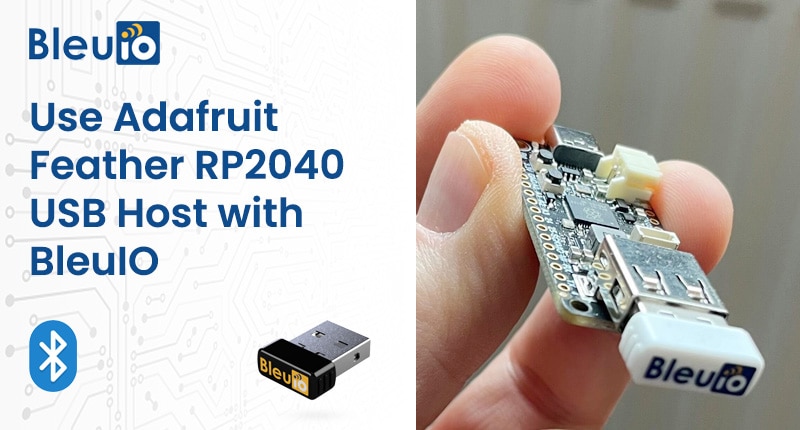
In the earlier parts of this series, we combined the Adafruit Feather RP2040 with the BleuIO USB dongle to build different BLE applications: setting up the RP2040 as a USB host, reading sensor data, advertising measurements, and handling secure connections.
In Part 5, we take the next step and create a simple two-way communication setup. Instead of only broadcasting data, we let a Python script running on your computer talk to the BleuIO dongle connected to the Feather RP2040 and control its LED in real time. At the same time, the Feather responds over the Serial Port Service (SPS), echoing messages back so you can see exactly what was sent on both sides.
This project is a good starting point if you want to remotely control devices, test custom BLE command protocols, or build interactive demos using BleuIO and RP2040.
On the hardware side, the Adafruit Feather RP2040 is configured as a USB host for the BleuIO dongle, using the same TinyUSB and Pico PIO USB approach as in Part 1 of the series. When the board starts, it initializes the USB host stack, detects the BleuIO dongle, and sends a short sequence of AT commands. These commands disable echo, ask the dongle for its own MAC address, set a friendly advertising name (BleuIO Arduino Example), and start BLE advertising. After that, the sketch simply listens for BLE connection events and SPS messages. Depending on what text message it receives over SPS, it either echoes the message back or sends a command to change the LED behavior on the dongle.
On the computer, a Python script acts as the BLE central. It uses the MAC address printed by the Feather’s serial output to connect to the advertising BleuIO dongle. Once connected, it sends text commands over SPS, such as ALERT, NORMAL or OFF, and reads back whatever the Feather sends in response. When the Python script sends one of these special words, the Feather generates BLEU AT commands to control the dongle’s LED; for any other text, it just echoes the message. This creates a complete round trip: you type in Python, the message travels over BLE to the RP2040 and BleuIO, and a response comes back the same way.
Hardware
USB cable for the Feather
USB-A port or hub for the BleuIO dongle
Computer running Windows, macOS, or Linux
Software
Adafruit TinyUSB Library
Pico PIO USB Library
ArduinoJson library
Python 3.x and the Python project that connects to BleuIO over SPS
If you already followed Part 1, your RP2040 USB host environment and board configuration should be ready to use.
You can find the complete source code for this project — both the Arduino sketch and the Python script — in our public GitHub repository: bleuio_arduino_message_transfer_example. Visit the repository at:
https://github.com/smart-sensor-devices-ab/bleuio_arduino_message_transfer_example
Feel free to clone or download the repo to get started quickly. All necessary files — including the .ino, helper headers, and the Python script — are included, so you can replicate the example or adapt it for your own project.
To quickly recap the setup from the earlier article: you install the Raspberry Pi RP2040 board package in the Arduino IDE, select the Feather RP2040 board, and install the Adafruit TinyUSB and Pico PIO USB libraries. You then make sure the CPU speed is set to 120 MHz or 240 MHz, since Pico PIO USB requires a clock that is a multiple of 120 MHz.
Open the bleuio_arduino_connect_example.ino and usbh_helper.h in the same Arduino sketch folder.
Select Adafruit Feather RP2040 (or your RP2040 board) under Tools → Board.

Choose the correct COM port for the Feather.
Click Upload.

After upload:
Open Serial Monitor at 9600 baud.
You should see something like:
Connect test v1.0
Core1 setup to run TinyUSB host with pio-usb
SerialHost is connected to a new CDC device. Idx: 0

BleuIO response:
{"own_mac_addr":"xx:xx:xx:xx:xx:xx"}
----
Every 10 seconds (based on ALIVE_TIME), you’ll see an update:
H:M:S - 0:0:10
own_mac_addr: xx:xx:xx:xx:xx:xx
Not connected!
Initially, it will say Not connected! because no BLE central is connected yet.
The Python script acts as a BLE central that connects to the advertising BleuIO dongle and uses the Serial Port Service (SPS).
A typical flow in the Python script is:
Read the MAC address printed by the Arduino Serial Monitor (own_mac_addr).
Use the BleuIO Python library (or BLE stack) to connect to that address.
Once connected, send plain text messages over SPS:
"ALERT"
"NORMAL"
"OFF"
Or any other text.
On the Python side, you’ll see:
Connection success message.
Any SPS response sent from the RP2040 (e.g. [RP2040] Alert command Received: [...] or [RP2040] Echo: ...).
On the Arduino Serial Monitor, you’ll see:
Connected!
SPS Received!
BleuIO response:
{"type":"SPS","evt":{"len":5,"ascii":"ALERT"}}
----
Sending command: AT+SPSSEND=[RP2040] Alert command Received: [ALERT]
And the LED on the BleuIO dongle will react according to the command:
ALERT → Blink pattern (AT+LED=T=100=100).
NORMAL → Toggle LED (AT+LED=T).
OFF → Turn LED off (AT+LED=0).
Any other message → Just an echo, no LED change.
This example completes the journey from simple advertising to full two-way communication between a computer application and a BleuIO dongle hosted by an Adafruit Feather RP2040. With this pattern in place, you can replace the LED commands with your own device protocol, combine it with the sensor examples from Part 2 and Part 4, or feed the exchanged messages into larger systems for logging, dashboards, or control logic. Because the communication relies on the standard Serial Port Service and BleuIO AT commands, the same structure can be reused for many other projects where a PC, an embedded board, and a BLE device need to work together.




 South Africa
Copyright © 1995-2026, DigiKey.
All Rights Reserved.
Terms & Conditions
Privacy Notice
Cookie Settings
South Africa
Copyright © 1995-2026, DigiKey.
All Rights Reserved.
Terms & Conditions
Privacy Notice
Cookie Settings